Watch the Walkthrough
Default Fonts in Starter Templates
Each Brilliant Assessments Starter template uses Google Fonts, which are free to download from Google Fonts. To make things easier, the fonts are already embedded in the templates, so you don’t need to download them unless you want to use them outside the report template.
A link to the fonts used in each Starter template is provided in the help article for that specific template.
Changing Fonts in the Starter Templates
Our Starter templates are designed with styles, making it simple to update fonts across your report. Styles are predefined formatting rules for text in your report, such as font type, size, and spacing, ensuring consistency throughout your document. Styles can be accessed in the ribbon at the top of the report or by opening the styles pane.
We recommend watching the video walkthrough for a more detailed look at how to do this.
Updating Heading Fonts
- Locate the Heading One style. In the sample templates, this is used for the title of the report.
- Select a new font for Heading One.
- Right-click on Heading One in the styles ribbon or select the dropdown from the styles pane
- Choose Update Heading One to Match Selection.
- All headings using this base style will automatically update.
Note: You can specify styles for the other headings using the same methodology.
Updating the Normal & Default Style
- Select a new font for the Normal style, such as Segoe UI.
- Select a line of text using the default style, then click on Format (in the menu) > Fonts, and press the Default button.
- Apply the style to This Document Only to ensure all unstyled text adopts the template’s font.
(Advanced) Adding Custom Fonts
If you need to use a custom font, you can upload it in the backend of Brilliant Assessments.
Navigate to Site Settings
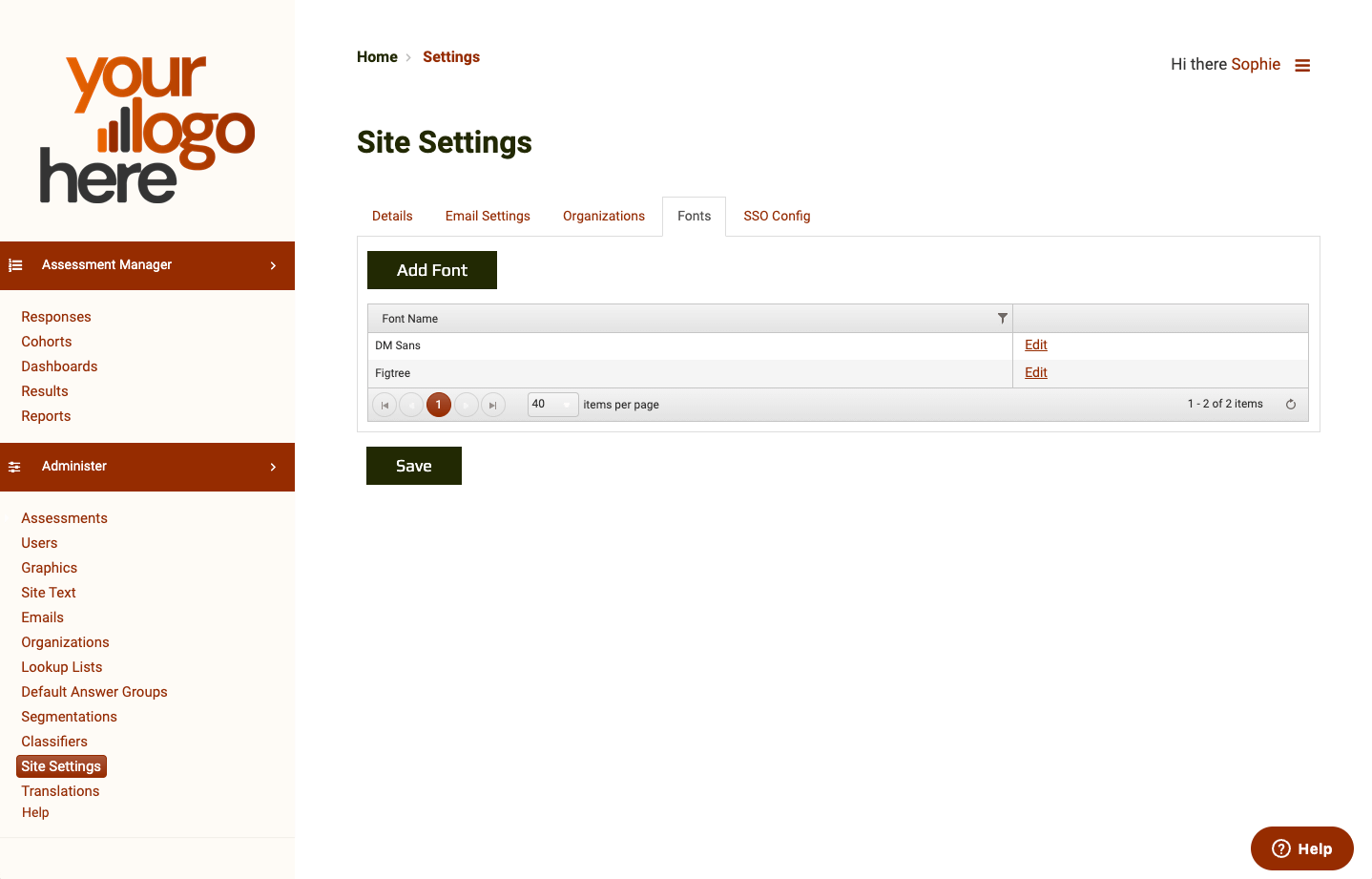
- Go to Site Settings > Fonts > Add Font.
- Fonts can be uploaded as a single font file or a zipped font pack. Supported file formats include:
.zip, .ttf, .otf, .TTC, .pfb, and .pfm.
For custom templates, ensure embedded fonts are enabled.

Comments
0 comments
Please sign in to leave a comment.